Making Primavera P6 Database Migration Faster with the P6-Scrubber Inbox
Have you ever migrated dozens or even hundreds of projects to a new Primavera P6 database? Perhaps your company is migrating several standalone databases to a new shared database, or perhaps you are archiving old projects. If you’ve done this before, you know how challenging this can be; it can take hours, if not days, to get ahold of all those projects and import them into your new database. That’s not even accounting for the dozens of hours that will be needed to clean up your global data, ensuring no old or outdated data pollutes your new database, and that different business units’ resources, codes, UDFs, and calendars aren’t impacting one another.
There’s a better and more efficient way of doing this. Emerald’s P6-Scrubber now allows you to skip over the tedium and monotony of importing projects into your new database, while cleaning these files at the same time.
Here’s how it works.
There’s a better and more efficient way of doing this. Emerald’s P6-Scrubber now allows you to skip over the tedium and monotony of importing projects into your new database, while cleaning these files at the same time.
Here’s how it works.
NEW Feature - Inbox Configuration
The inbox importing functionality lets you configure a file folder where you can drop one or more XER files, with no limit to how many files can be added. When you drop files here, the importer will scrub the file using a given Scrubber Profile and then import that file into Primavera using a specific Import Template.First, you need to configure your Scrubber profile with all the changes you want to apply to your projects.
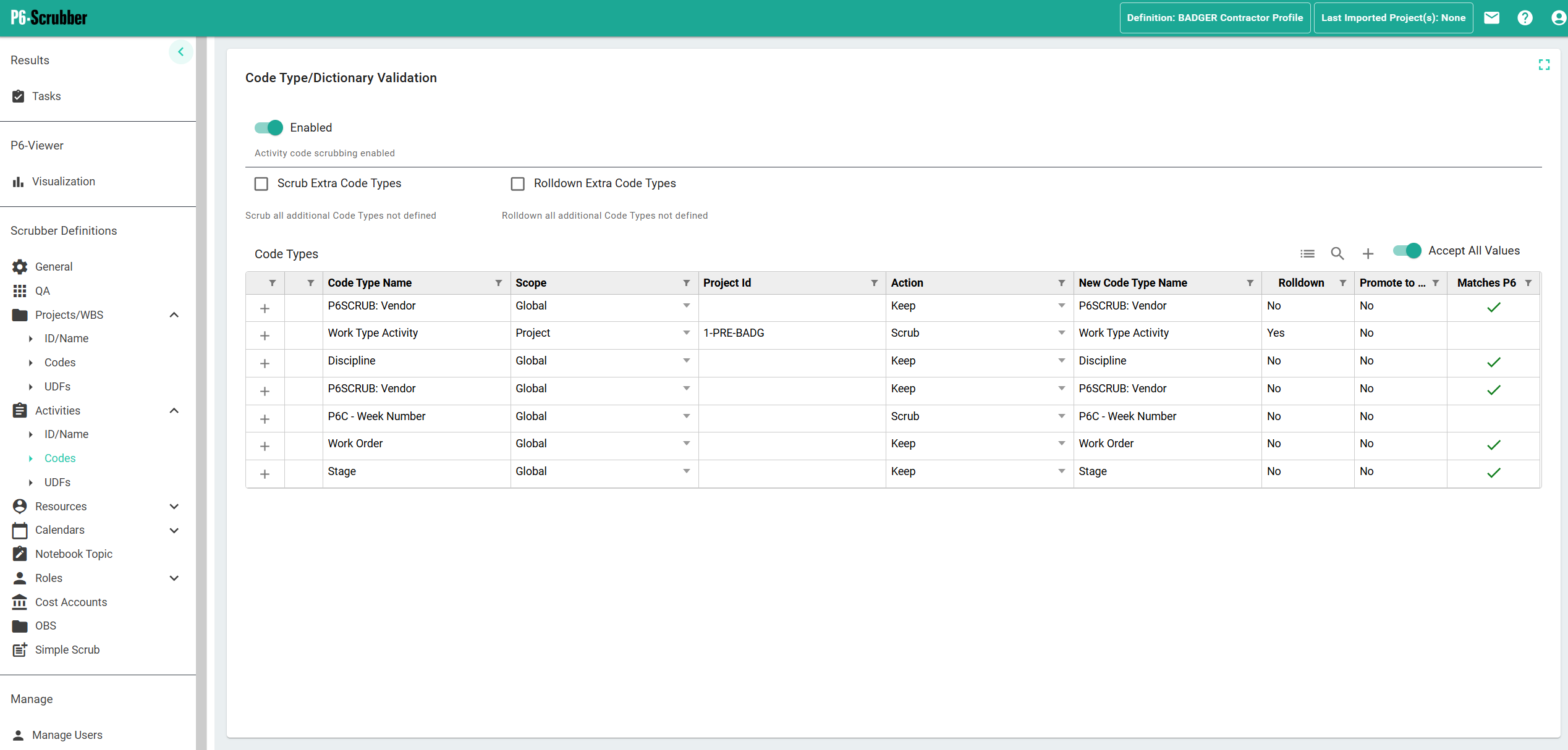
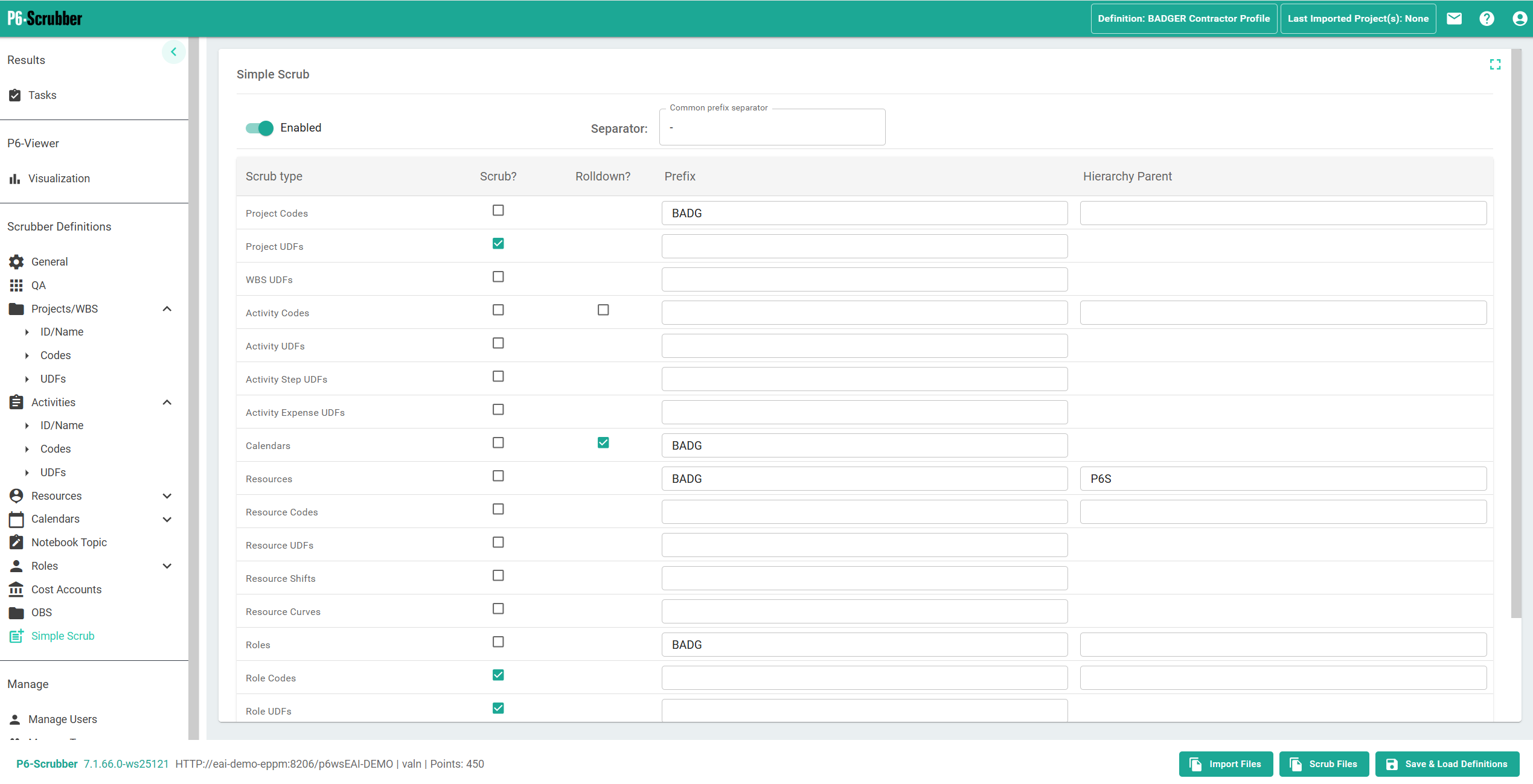
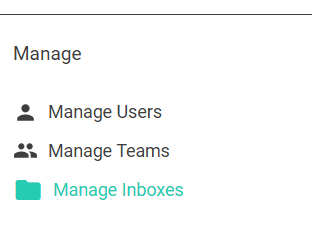
Next, go to the Manage Inboxes button under Manage:

Here is the dialog used for creating/updating an Inbox Configuration:
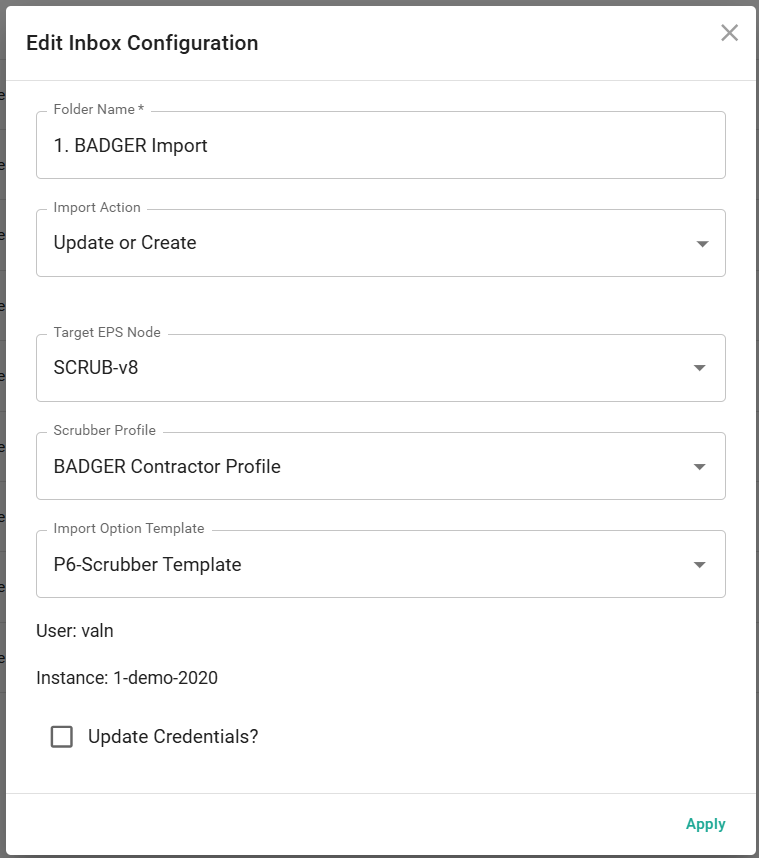
- Folder Name is the unique name of the folder under the root folder.
- Import Action specifies how the file will be imported. The options are: Update, Create/Update, Create only.
- Target EPS Node specifies where new projects will land in P6 (this is not applicable when using Update mode).
- Scrubber Profile is the scrubber profile that will be applied to the files dropped in the Inbox (global profiles only).
- Import Option Template is the P6 import profile to be used when importing the projects into Primavera (configured in the web version of P6).
- Update Credentials? can be checked to update the user that is used to import the project files into P6. Files will show in P6 as having been imported by this user.

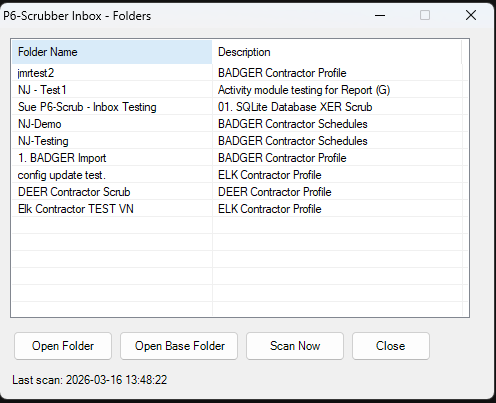
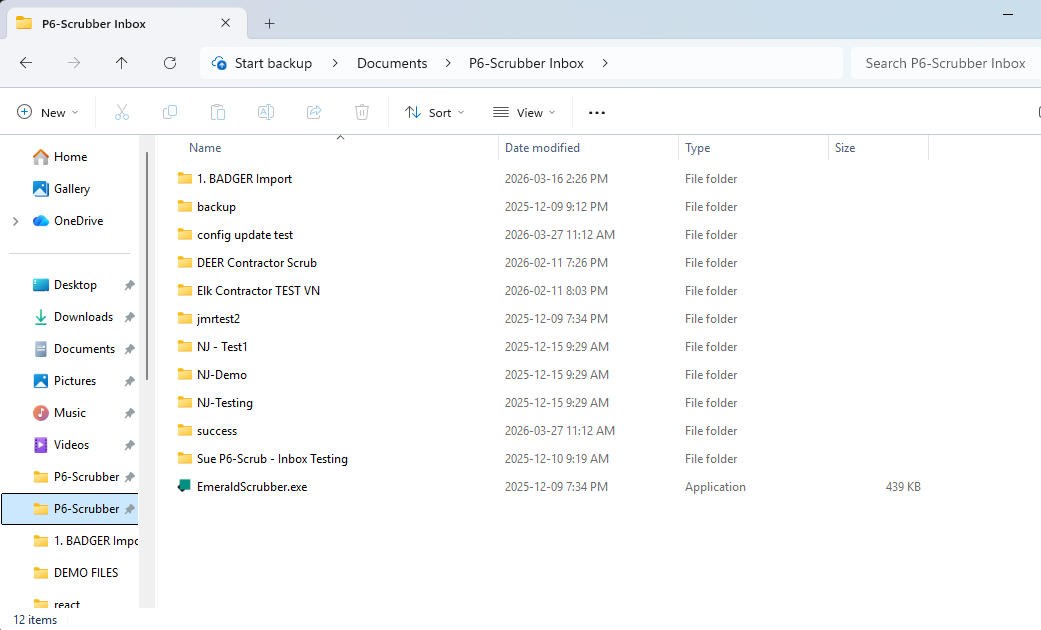
Once we run the EmeraldScrubber.exe, all of the Inbox folders will be automatically created as sub-directories of the inbox “root folder”, specified in the Configurator. When clicking “Scan Now”, the utility will create any new Inbox folders that were configured in P6-Scrubber since the tool was last run.
The P6-Scrubber Inbox folder on your PC contains each Scrubber profile configured in P6-Scrubber. Depositing an .xer or an .xml file into these folders will begin the scrubbing and importing process. Any number of projects can exist within these .xer or .xml files, and any number of files can be placed into the Inbox at a time. They will be queued up and scrubbed in the background.
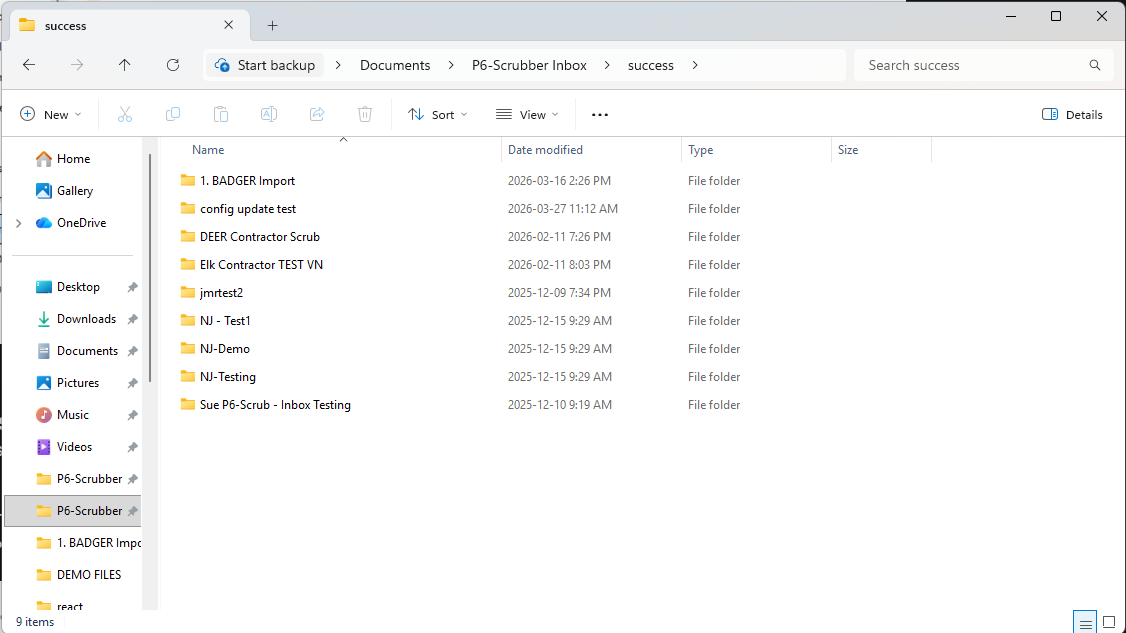
The Success folder contains files that have been successfully scrubbed and are queued up to be imported into P6. These files remain in the success folder so that they can be reviewed if necessary.
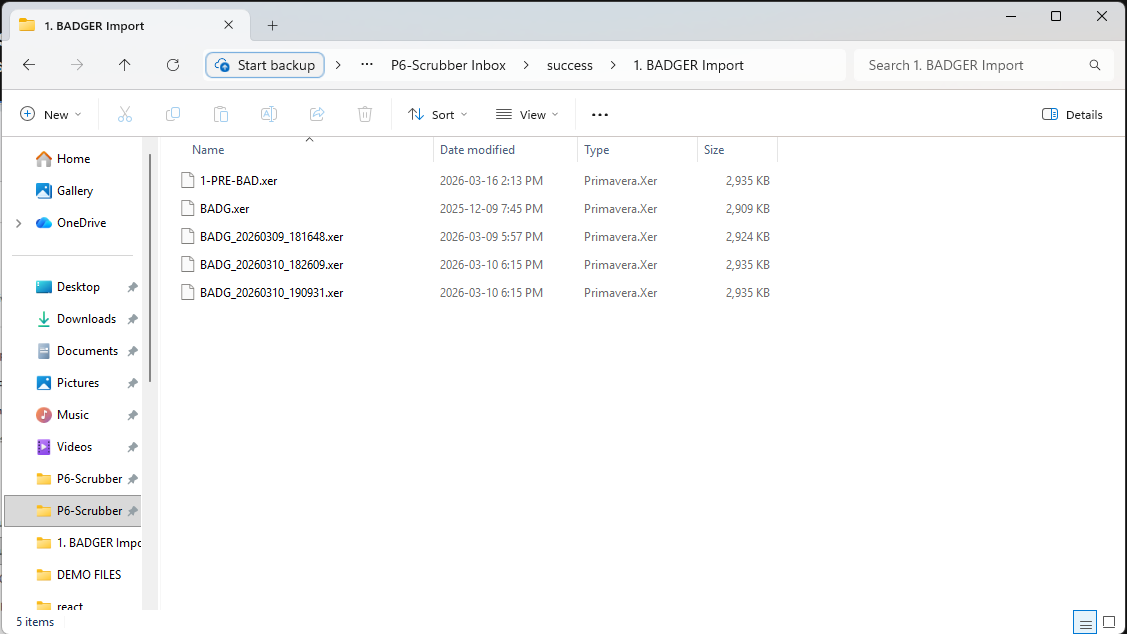
After placing a file into one of the folders, the project will be automatically scrubbed with the profile you have specified in the Inbox setup. P6-Scrubber will show two logs in the Tasks section - one for the scrub itself, and another for the import.

Once the following logs show green, the file has been imported into your EPS structure in P6. Refresh your database to see your scrubbed and imported projects.
About the Author
Valerie Nicholson, B.A. - Implementation Specialist
Valerie initially joined Emerald Associates part-time in 2015 as a member of the OPS team while she pursued her B.A. in History at Ambrose University. After completing her studies, she joined the company full time. Valerie has taken part in claims, major migration projects, and training, working with Emerald’s diverse portfolio of clients in the Oil and Gas, Nuclear, Utilities, Rail, and IT fields as well as many more. She has worked with clients in Canada, the USA, and the Philippines.
In her spare time, Valerie is an avid gamer, fashion enthusiast, and cosplayer.
In her spare time, Valerie is an avid gamer, fashion enthusiast, and cosplayer.
